
Taming noisy random HDD spin-ups between Time Machine backups
Published:
This article details my strategy for absolutely minimizing the amount of times I must hear my external hard disk drive (HDD), used for macOS Time Machine backups, noisily spin up to the outright bare minimum. It has been a ride…
Fancy yourself comfortably in bed, slowly drifting off to sleep, when suddenly you’re jolted awake by:
Imagine just casually watching a YouTube video or trying to focus on work, and then suddenly, out of the blue, BZZZT-WHIRRRRRR-TICK-TICK-HRRRR…
Reducing this to the absolute minimum is the mission I set out to achieve and detail here.
Setting the stage
My home computing setup consists of a M4 MacBook Pro that largely lives lid-closed in clamshell mode docked to a CalDigit TS5+ dock, which is then connected to two monitors, speakers, and other accessories. It is very convenient being able to have at minimum just the single Thunderbolt 5 cable to plug/unplug to switch between using my Mac like a desktop versus as a laptop (though, I often do also connect the MagSafe cable for AC power). In general, it lives this “desktop life”, and I have adjusted some settings to have it behave more like a desktop, most importantly being to disable the machine from automatically going to sleep when on AC power, allowing me to run simulations or any other task overnight without fear of the system interrupting it.
Simultaneously, I also strongly believe in the 3-2-1 backup rule, that my data should consist of at least 3 copies spread over 2 different types of storage media with 1 copy offsite. For years I have been a happy customer of Backblaze for that offsite component, but my history with the additional local copy has been a struggle, until I moved to macOS, which has an excellent built-in utility exactly for this purpose: Time Machine. All you need is an extra external drive with a bunch of extra space, ideally at least twice the Mac’s storage capacity. I happened to find a pretty good deal on an (overkill) 14 TB Western Digital external hard drive (HDD), so that is what I have living connected to my dock at all times.
Little did I know at the time what a rabbit hole this specific series of decisions was about to lead me down…
The initial problem
What I didn’t know at the time was:
- My HDD is really quite noisy when it spins up…
- Time Machine’s default scheduling options weren’t ideal for me.
- The system will regardless spin up the HDD randomly even outside of Time Machine backups.
This had me feeling quite frustrated. While Time Machine is an absolutely lovely utility that makes good data backup habits incredibly easy, including encrypting your backups by selecting APFS encryption when configuring the volume, its user-facing options are extremely minimal. Your options for backup frequency are hourly, daily, weekly, or manually. For me personally, I think daily is fine, hourly is probably overkill, but ideally I would be able to have something in between.
Furthermore, even if I set Time Machine to only back up daily, for as long as the HDD remains mounted to my Mac, the system and/or the dock will prod at it randomly, causing it to spin up, even if the “Put hard disks to sleep when possible” setting is set to “Always”. Sometimes it would go an hour or few without spinning up; other times it would spin up several times within an hour. It was becoming extremely grating, and I was really starting to regret my HDD purchase. “Had I just paid quite a bit more money for an SSD-based external drive for Time Machine it’d be silent and without any of these issues!” I lamented.
It was too late for that solution now though. While I had bought it at a very good deal, that HDD still wasn’t so cheap that just spending my way out of the problem was remotely palatable. Surely I could work through these issues and somehow develop a solution, right?
The solution as designed
Assumptions
I outline here the solution implemented in my environment with my configuration: A M4 MacBook Pro running macOS 26 Tahoe connected to a dock (CalDigit TS5+) connected to an APFS-encrypted external HDD (WD Elements, 14 TB), where the MacBook by default lives connected to the dock unless I happen to be taking it out with me somewhere. I imagine this solution will be more broadly applicable than to this specific combination of equipment and configuration, but since I never pinpointed exactly every single different reason why my HDD spun up at all the various circumstances it did, just developed a robust solution that prevented it all, it is possible some of these steps may not be fully necessary nor complete on your own system. That said, I do feel this approach is quite robust.
Objective
The HDD spin-ups should be absolutely minimized to the bare amount necessary. As a baseline, this means it should only spin up for Time Machine backups alone, though I consider additional spin-ups when I re-dock the MacBook (after being disconnected) or when I first wake the MacBook from sleep or restart it acceptable. The key here is that spin-ups should be consistent and predictable, not happening randomly at any hour and regardless of whether the MacBook is actively being used, locked and idle, or set to sleep. Furthermore, I want Time Machine to perform backups at a few set times of my choosing per day, but I would also like for these backups to be skipped if the MacBook is set to Sleep. The solution should be fully in software and automated; it should not require me to remember to unplug/replug some physical cable or to manually run some script or Shortcut.
Solution
The solution I ultimately fell upon is to keep the HDD used for Time Machine unmounted at all times, only allowing it to be automatically mounted immediately before a Time Machine backup and promptly automatically ejected afterward. The small TimeMachineEditor app is the perfect solution for the Time Machine scheduling part here; I specifically have settled on three scheduled backups per day at 11:00, 16:00, and 21:00. I then use two custom-made LaunchDaemons to schedule the automation of mounting the HDD immediately before a scheduled Time Machine backup and to then, only after the backup is complete, eject the HDD once more.
The LaunchDaemons essentially each just run a shell script. The mounting script is scheduled to run 2 minutes before each scheduled TimeMachine backup and is responsible for first ensuring that the MacBook is not set to be sleeping before proceeding and then unlocking and mounting the APFS-encrypted HDD used for Time Machine backups; it also creates a temporary file to signify it was responsible for mounting the HDD. The ejection script is scheduled to launch 1 minute after each scheduled Time Machine backup; it first checks for that temporary file (as to not errantly disconnect the HDD if I had manually mounted it myself) and, if present, proceeds to then enter a polling loop where it checks whether Time Machine is still running or is finished (every 20 seconds for 5 minutes followed by every 1 minute for 40 more minutes) and, once Time Machine is detected as finished, it then unmounts the HDD volume, deletes the temporary file, and terminates.
I also created a Shortcut that allows me to manually mount the HDD easily in the event I ever want to interact with it solely in software, rather than needing to do some clunky unplugging and replugging of cables. And, of course, when I’m done with it I can just eject it normally as done with any external media.
Next, I’ll step through the exact implementation for getting this all set up.
How to implement the solution
Step 1 — Identify APFS volume UUID
First, you’ll need to be able to consistently identify which attached volume is your drive used for Time Machine. Fortunately, each drive has a universally unique identifier (UUID) associated with it that is constant that you can fetch.
Run:
diskutil apfs list
Locate the APFS Volume named your Time Machine volume (e.g., TimeMachine on my system), then copy its Volume UUID (not the container UUID). For example, on my system:
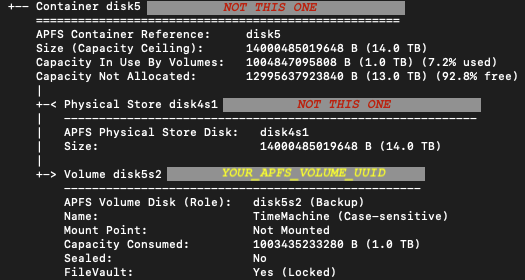
You will use it shortly in Step 5 (and later in Step 12) as:
TM_APFS_UUID="YOUR-UUID-HERE"
Step 2 — Create required directories
sudo mkdir -p /usr/local/etc/tm-dock
sudo mkdir -p /usr/local/sbin
These directories will be where the schedule file (tiny text file listing out the desired backup times), disk passphrase file (for unlocking the APFS-encrypted HDD), and scripts for the LaunchDaemons (and Shortcut) will live. These are made in the next few steps.
Step 3 — Create schedule file
Create:
sudo nano /usr/local/etc/tm-dock/times.conf
Example contents:
# One backup time per line (24-hour HH:MM)
11:00
16:00
21:00
Save and exit.
This is your single source of truth for scheduling for the LaunchDaemon side of things.
Step 4 — Store disk passphrase, ensure root-only access
Create:
sudo nano /usr/local/etc/tm-dock/passphrase
Paste your Time Machine disk encryption password (one line only). You set this password when you first configured the volume with APFS encryption. Most likely you had selected to have it saved to the Mac when you created it. If so, it can be found in the Keychain Access app (search for it in Spotlight; yes, the password lives here and not in the separate Passwords app); searching for the name of your volume (e.g., TimeMachine for me) in it is probably the fastest way to find it.
Secure the passphrase file:
sudo chown root:wheel /usr/local/etc/tm-dock/passphrase
sudo chmod 600 /usr/local/etc/tm-dock/passphrase
Security note: Only root can read this file. If someone has root access to your computer, disk encryption is not your limiting defense anyway and you have far bigger worries.
Step 5 — Prepare the mount script
Create:
sudo nano /usr/local/sbin/tm-dock-mount.sh
Paste:
#!/bin/zsh
set -euo pipefail

# ===== USER SETTINGS =====
TM_APFS_UUID="PUT_YOUR_APFS_VOLUME_UUID_HERE"
VOL_PATH="/Volumes/TimeMachine"
PASSFILE="/usr/local/etc/tm-dock/passphrase"
SCHEDULE_FILE="/usr/local/etc/tm-dock/times.conf"
# =========================

# Exit only if the most recent system wake was positively identified as a
# background DarkWake (PowerNap, maintenance, scheduled job).
# Any other outcome — full wake, unreadable log, unexpected format — proceeds,
# since a missed backup is worse than an unnecessary HDD spin-up.
# Parse the event-type label (field 4) from the pmset log:
#   "Wake"      = full user wake -> proceed
#   "DarkWake"  = background/PowerNap wake -> exit early
#   anything else / empty -> proceed (fail safe)
# The grep pre-filters to lines whose label is Wake or DarkWake followed by
# the same word in the description, excluding noise like "Wake Requests".
mkdir -p /tmp/tm-dock

last_wake_line=$(pmset -g log 2>/dev/null | LC_ALL=C grep -E '^\S+ \S+ \S+ (Wake|DarkWake)\s+\t?(Wake|DarkWake)' | tail -1)
wake_label=$(echo "$last_wake_line" | LC_ALL=C awk '{print $4}')

echo "$(date): wake_label='${wake_label}' last_wake_line='${last_wake_line}'" >> /tmp/tm-dock/idle-debug.log

if [[ -n "$last_wake_line" && "$wake_label" == "DarkWake" ]]; then
  echo "$(date): exiting early (DarkWake detected)" >> /tmp/tm-dock/idle-debug.log
  exit 0
else
  echo "$(date): proceeding with script (full Wake or no DarkWake detected)" >> /tmp/tm-dock/idle-debug.log
fi

# This job is scheduled at (scheduled_time - 2 minutes).
# Guard: only act if within +/- 3 minutes of any expected mount time
WINDOW_MINUTES=3

STATE_DIR="/tmp/tm-dock"
FLAG_FILE="$STATE_DIR/mounted_by_script"
mkdir -p "$STATE_DIR"

# Convert current time to minutes since midnight
now_min=$((10#$(date +%H)*60 + 10#$(date +%M)))

# Parse times.conf -> minutes from midnight
# Each valid HH:MM entry is converted to minutes since midnight and collected
# into sched_mins. Lines beginning with # or blank lines are skipped.
sched_mins=()
while IFS= read -r line; do
  [[ "$line" =~ ^[[:space:]]*# ]] && continue
  [[ "$line" =~ ^[[:space:]]*$ ]] && continue
  if [[ "$line" =~ ^([0-9]{1,2}):([0-9]{2})[[:space:]]*$ ]]; then
    h=${match[1]}; m=${match[2]}
    sched_mins+=($((10#$h*60 + 10#$m)))
  fi
done < "$SCHEDULE_FILE"

# This script is scheduled 2 minutes before each backup time. Check that the
# current time falls within WINDOW_MINUTES of the expected mount time for at
# least one scheduled backup. The +1440 % 1440 arithmetic handles midnight
# wraparound. If d > 720 we take the shorter arc around the clock face.
in_window=0
for s in "${sched_mins[@]}"; do
  mount_min=$(((s - 2 + 1440) % 1440))
  d=$(( (now_min - mount_min + 1440) % 1440 ))
  (( d > 720 )) && d=$((1440 - d))
  if (( d <= WINDOW_MINUTES )); then
    in_window=1
    break
  fi
done
(( in_window == 1 )) || exit 0

# If already mounted, do nothing (and don't set flag).
[[ -d "$VOL_PATH" ]] && exit 0

# Unlock (if locked). If already unlocked, this prints an error; we ignore it.
# Note: unlocking may mount automatically, but not always.
/usr/sbin/diskutil apfs unlockVolume "$TM_APFS_UUID" -stdinpassphrase < "$PASSFILE" >/dev/null 2>&1 || true

# If still not mounted, determine the current disk identifier (e.g. disk7s2) and mount it.
if [[ ! -d "$VOL_PATH" ]]; then
  DISK_ID="$(/usr/sbin/diskutil apfs list | /usr/bin/awk -v uuid="$TM_APFS_UUID" '
    $0 ~ uuid { getline; if ($1 == "APFS" && $2 == "Volume" && $3 == "Disk" && $4 ~ /^\(Role\):$/) { print $5; exit }
             else if ($1 == "APFS" && $2 == "Volume" && $3 == "Disk") { print $4; exit } }
  ')"

  # Fallback parsing (more robust): look for "APFS Volume Disk (Role): diskXsY"
  if [[ -z "${DISK_ID:-}" ]]; then
    DISK_ID="$(/usr/sbin/diskutil apfs list | /usr/bin/awk -v uuid="$TM_APFS_UUID" '
      $0 ~ uuid { found=1 }
      found && /APFS Volume Disk/ { for (i=1;i<=NF;i++) if ($i ~ /^disk[0-9]+s[0-9]+$/) { print $i; exit } }
    ')"
  fi

  if [[ -n "${DISK_ID:-}" ]]; then
    /usr/sbin/diskutil mount "$DISK_ID" >/dev/null 2>&1 || true
  fi
fi

# Confirm mounted and set flag (so unmount job knows it’s safe to unmount)
if [[ -d "$VOL_PATH" ]]; then
  echo "1" > "$FLAG_FILE"
fi
Replace the UUID line with your UUID from Step 1.
Make executable:
sudo chmod 755 /usr/local/sbin/tm-dock-mount.sh
In the script, you can delete the lines echoing to /tmp/tm-dock/idle-debug.log if you’d like, but I was using this log file a ton when troubleshooting getting this active/locked/sleeping gate to behave just right, only skipping backups when the Mac was set to sleep (but allowing them to proceed if the system was only locked or in active use). It is still a nice sanity check to confirm the scripts are behaving as desired.
To add, this was a huge rabbit hole all on its own. There were many methods I tried to use for querying the current system state, but none were consistent and many were difficult to exactly troubleshoot since the LaunchDaemons are executing in the system environment rather than the user environment. I ultimately found just querying the most recent Wake event from the pmset log to see if it was a DarkWake or normal (Full)Wake was the best way to figure this out.
Also, as stated early on, I do also have the “Prevent automatic sleeping on power adapter when the display is off” Battery setting enabled, meaning only locking my MacBook while docked should leave it in a full wake state even once the displays turn off automatically to save energy; only manually setting it to Sleep (which I do nightly or when leaving the MacBook for a while) should put it in a state where DarkWake events are occurring when these LaunchDaemons run.
Step 6 — Prepare the monitor + unmount/eject script
Create:
sudo nano /usr/local/sbin/tm-dock-monitor-unmount.sh
Paste:
#!/bin/zsh
set -euo pipefail

VOL_PATH="/Volumes/TimeMachine"
SCHEDULE_FILE="/usr/local/etc/tm-dock/times.conf"

STATE_DIR="/tmp/tm-dock"
FLAG_FILE="$STATE_DIR/mounted_by_script"
mkdir -p "$STATE_DIR"

# Only unmount if we mounted it
[[ -f "$FLAG_FILE" ]] || exit 0

# Tight polling: fast for first 5 minutes, then slower
FAST_POLL_SECONDS=20
FAST_POLL_DURATION_SECONDS=300   # 5 minutes
SLOW_POLL_SECONDS=60
MAX_MONITOR_SECONDS=2700   # 45 minutes

# This script is scheduled 1 minute after each backup time and monitors for up to
# 45 minutes. These offsets define that window relative to each scheduled backup time.
WINDOW_START_OFFSET=1
WINDOW_END_OFFSET=45

# Convert current time to minutes since midnight
now_min=$((10#$(date +%H)*60 + 10#$(date +%M)))

# Parse times.conf -> minutes from midnight, same as mount script.
sched_mins=()
while IFS= read -r line; do
  [[ "$line" =~ ^[[:space:]]*# ]] && continue
  [[ "$line" =~ ^[[:space:]]*$ ]] && continue
  if [[ "$line" =~ ^([0-9]{1,2}):([0-9]{2})[[:space:]]*$ ]]; then
    h=${match[1]}; m=${match[2]}
    sched_mins+=($((10#$h*60 + 10#$m)))
  fi
done < "$SCHEDULE_FILE"

# Check whether the current time falls within [backup_time + 1, backup_time + 45]
# for any scheduled backup. The if/else handles midnight wraparound: when start > end
# the window crosses midnight, so membership is tested with OR rather than AND.
in_window=0
for s in "${sched_mins[@]}"; do
  start=$(((s + WINDOW_START_OFFSET) % 1440))
  end=$(((s + WINDOW_END_OFFSET) % 1440))
  if (( start <= end )); then
    (( now_min >= start && now_min <= end )) && in_window=1
  else
    (( now_min >= start || now_min <= end )) && in_window=1
  fi
done
(( in_window == 1 )) || exit 0

# Only proceed if the mount script set the flag, and the volume is still mounted.
# If the volume has already disappeared on its own, clean up the flag and exit.
[[ -f "$FLAG_FILE" ]] || exit 0
[[ -d "$VOL_PATH" ]] || { rm -f "$FLAG_FILE"; exit 0; }

# Returns true if Time Machine is actively running a backup.
is_tm_running() {
  /usr/bin/tmutil status 2>/dev/null | grep "Running = 1" >/dev/null
}

# Attempts to unmount the volume up to 12 times with 2-second pauses between
# tries, to handle transient busy states (e.g. TM finishing a final write).
unmount_with_retries() {
  for i in {1..12}; do
    if /usr/sbin/diskutil unmount "$VOL_PATH" >/dev/null 2>&1; then
      return 0
    fi
    sleep 2
  done
  return 1
}

begin_epoch=$(date +%s)

# Poll until Time Machine finishes, then unmount. Uses a fast poll interval
# for the first FAST_POLL_DURATION_SECONDS, then switches to a slower interval
# to reduce unnecessary CPU wake-ups during long backups. Exits unconditionally
# after MAX_MONITOR_SECONDS regardless of backup state, to avoid the script
# running indefinitely if something goes wrong.
while true; do
  elapsed=$(( $(date +%s) - begin_epoch ))
  (( elapsed <= MAX_MONITOR_SECONDS )) || exit 0

  if is_tm_running; then
    if (( elapsed < FAST_POLL_DURATION_SECONDS )); then
      sleep "$FAST_POLL_SECONDS"
    else
      sleep "$SLOW_POLL_SECONDS"
    fi
  else
    unmount_with_retries || true
    rm -f "$FLAG_FILE"
    exit 0
  fi
done
Make executable:
sudo chmod 755 /usr/local/sbin/tm-dock-monitor-unmount.sh
Note that the temporary “flag” file "/tmp/tm-dock/mounted_by_script" is the important piece of insurance here that prevents this script from ejecting the HDD unless the HDD was mounted automatically by tm-dock-mount.sh in the first place (which creates the flag file).
Step 7 — Prepare the script that builds the LaunchDaemons
Create:
sudo nano /usr/local/sbin/tm-dock-generate-plists.sh
Paste:
#!/bin/zsh
set -euo pipefail

# Reads backup times from times.conf and generates two LaunchDaemon plist
# files: one to mount the Time Machine volume before each backup, and one
# to monitor and unmount it afterward. Run this script with sudo whenever
# times.conf is changed, then reload the daemons manually.

# Source of truth for backup schedule. Each line should be HH:MM format.
SCHEDULE_FILE="/usr/local/etc/tm-dock/times.conf"

# Scripts invoked by the generated LaunchDaemons.
MOUNT_SCRIPT="/usr/local/sbin/tm-dock-mount.sh"
UNMOUNT_SCRIPT="/usr/local/sbin/tm-dock-monitor-unmount.sh"

# LaunchDaemons must live here to be loaded by launchd at boot.
PLIST_DIR="/Library/LaunchDaemons"
MOUNT_PLIST="$PLIST_DIR/com.tmdock.mount.plist"
UNMOUNT_PLIST="$PLIST_DIR/com.tmdock.unmount.plist"

mkdir -p "$PLIST_DIR"

# Parse times.conf into a list of scheduled backup times in minutes since midnight.
# Comments and blank lines are skipped. Hour and minute values are range-validated.
mins=()
while IFS= read -r line; do
  [[ "$line" =~ ^[[:space:]]*# ]] && continue
  [[ "$line" =~ ^[[:space:]]*$ ]] && continue
  if [[ "$line" =~ ^([0-9]{1,2}):([0-9]{2})[[:space:]]*$ ]]; then
    h=${match[1]}; m=${match[2]}
    (( h >= 0 && h <= 23 )) || continue
    (( m >= 0 && m <= 59 )) || continue
    mins+=($((10#$h*60 + 10#$m)))
  fi
done < "$SCHEDULE_FILE"

# Sort and deduplicate parsed times (@o = sort, @u = unique in zsh).
# Abort if no valid times were found.
mins=("${(@ou)mins}")
if (( ${#mins[@]} == 0 )); then
  echo "No valid times in $SCHEDULE_FILE"
  exit 1
fi

# Converts a time in minutes since midnight to a plist <dict> entry suitable
# for use in a StartCalendarInterval array.
hm_dict() {
  local mm=$1
  local hh=$(( mm / 60 ))
  local mi=$(( mm % 60 ))
  echo "      <dict><key>Hour</key><integer>${hh}</integer><key>Minute</key><integer>${mi}</integer></dict>"
}

# For each scheduled backup time, derive the mount and unmount fire times:
#   mount:   2 minutes before the backup (ensures HDD is ready in time)
#   unmount: 1 minute after the backup (gives TM time to start before monitoring begins)
# +1440 % 1440 handles midnight wraparound for both offsets.
mount_dicts=""
unmount_dicts=""

for s in "${mins[@]}"; do
  mount_min=$(((s - 2 + 1440) % 1440))
  unmount_min=$(((s + 1) % 1440))
  mount_dicts+=$'\n'"$(hm_dict "$mount_min")"
  unmount_dicts+=$'\n'"$(hm_dict "$unmount_min")"
done

# Write the mount LaunchDaemon plist. StartCalendarInterval entries are
# generated from the times derived above. RunAtLoad is false so the daemon
# only fires at the scheduled times, not on boot.
cat > "$MOUNT_PLIST" <<EOFPL
<?xml version="1.0" encoding="UTF-8"?>
<!DOCTYPE plist PUBLIC "-//Apple//DTD PLIST 1.0//EN" "http://www.apple.com/DTDs/PropertyList-1.0.dtd">
<plist version="1.0">
  <dict>
    <key>Label</key><string>com.tmdock.mount</string>

    <key>ProgramArguments</key>
    <array>
      <string>/bin/zsh</string>
      <string>$MOUNT_SCRIPT</string>
    </array>

    <key>StartCalendarInterval</key>
    <array>$mount_dicts
    </array>

    <key>RunAtLoad</key><false/>
    <key>StandardOutPath</key><string>/tmp/com.tmdock.mount.out</string>
    <key>StandardErrorPath</key><string>/tmp/com.tmdock.mount.err</string>
  </dict>
</plist>
EOFPL

# Write the unmount LaunchDaemon plist, structured identically to the mount
# plist but using the unmount script and its derived fire times.
cat > "$UNMOUNT_PLIST" <<EOFPL
<?xml version="1.0" encoding="UTF-8"?>
<!DOCTYPE plist PUBLIC "-//Apple//DTD PLIST 1.0//EN" "http://www.apple.com/DTDs/PropertyList-1.0.dtd">
<plist version="1.0">
  <dict>
    <key>Label</key><string>com.tmdock.unmount</string>

    <key>ProgramArguments</key>
    <array>
      <string>/bin/zsh</string>
      <string>$UNMOUNT_SCRIPT</string>
    </array>

    <key>StartCalendarInterval</key>
    <array>$unmount_dicts
    </array>

    <key>RunAtLoad</key><false/>
    <key>StandardOutPath</key><string>/tmp/com.tmdock.unmount.out</string>
    <key>StandardErrorPath</key><string>/tmp/com.tmdock.unmount.err</string>
  </dict>
</plist>
EOFPL

# LaunchDaemon plists must be owned by root:wheel with mode 644,
# otherwise launchd will refuse to load them.
chown root:wheel "$MOUNT_PLIST" "$UNMOUNT_PLIST"
chmod 644 "$MOUNT_PLIST" "$UNMOUNT_PLIST"

echo "Wrote:"
echo "  $MOUNT_PLIST"
echo "  $UNMOUNT_PLIST"
Then make executable:
sudo chmod 755 /usr/local/sbin/tm-dock-generate-plists.sh
Step 8 — Generate LaunchDaemons
Run the script generated in Step 7:
sudo /usr/local/sbin/tm-dock-generate-plists.sh
Step 9 — Load LaunchDaemons
Unregister old LaunchDaemons (important if updating them) and load new ones:
sudo launchctl bootout system /Library/LaunchDaemons/com.tmdock.mount.plist 2>/dev/null || true
sudo launchctl bootout system /Library/LaunchDaemons/com.tmdock.unmount.plist 2>/dev/null || true

sudo launchctl bootstrap system /Library/LaunchDaemons/com.tmdock.mount.plist
sudo launchctl bootstrap system /Library/LaunchDaemons/com.tmdock.unmount.plist
The bootout commands are harmless on their first invocation (before you’ve registered any daemon to launchd) and are critical to run before bootstrap for any future invocations when you want to reload the plist files, which you would need to do if updating the backup schedule.
Step 10 — Configure TimeMachineEditor
Open TimeMachineEditor and set the same times as in times.conf, with the “Calendar Intervals” setting:
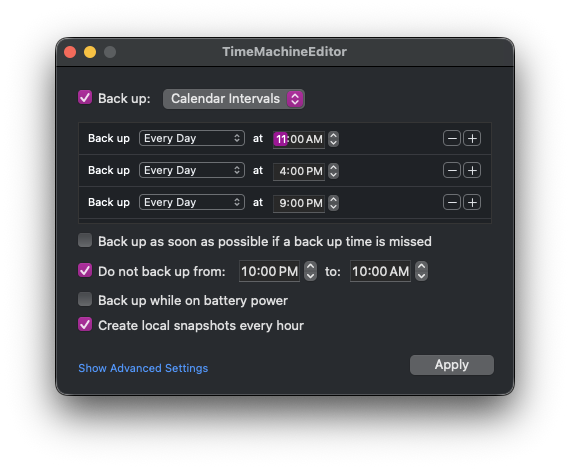
After all these steps, now the disk will:
- Mount 2 minutes before the scheduled backup
- Run its Time Machine backup
- Unmount immediately after completion
Step 11 - disable “standby” while on AC power (optional?)
So, I have marked this as “optional?” because it was necessary for me to eliminate all remaining mystery random spin-ups (even with the HDD remaining unmounted…), but I never really identified if this was something unique to my specific dock and/or HDD or if this was a more general thing.
Basically, even after all of the above, I was still having cases where I’d hear the HDD spin up randomly in the middle of the night when the MacBook was set to Sleep, sometimes even flashing on my external displays, despite ensuring the HDD was ejected/unmounted before setting the computer to Sleep. This weirdness would also sometimes leave me with “Disk not properly ejected” notifications when I next got back onto my MacBook, or even with the HDD mysteriously mounted.
The culprit was identified as the “standby” power mode. So, this is more of a separate power management behavior issue rather than something related to Time Machine or the LaunchDaemons here at all.
The solution was simply to disable standby (standby 0) only while on AC power (-c):
sudo pmset -c standby 0
After setting this, I no longer had any random unexpected HDD spin-ups while the MacBook should otherwise be set to Sleep.
If you’re curious about your own standby power setting, you can execute:
pmset -g | grep standby
If you ever need to restore it default behavior later:
sudo pmset -c standby 1
Step 12 — Manual mount Shortcut (optional but strongly recommended)
This step creates the Shortcut that you can simply run in macOS to manually mount the HDD without needing to unplug and replug anything physically, very useful if you ever want to mount it to just inspect the Time Machine backups or restore any files.
Create:
sudo nano /usr/local/sbin/tm-dock-manual-mount.sh
Paste:
#!/bin/zsh
set -euo pipefail

TM_APFS_UUID="PUT_YOUR_APFS_VOLUME_UUID_HERE"
PASSFILE="/usr/local/etc/tm-dock/passphrase"
VOL_PATH="/Volumes/TimeMachine"

[[ -d "$VOL_PATH" ]] && exit 0

# Unlock (if locked). If already unlocked, this prints an error; we ignore it.
# Note: unlocking may mount automatically, but not always.
/usr/sbin/diskutil apfs unlockVolume "$TM_APFS_UUID" -stdinpassphrase < "$PASSFILE" >/dev/null 2>&1 || true

# If still not mounted, determine the current disk identifier (e.g. disk7s2) and mount it.
if [[ ! -d "$VOL_PATH" ]]; then
  DISK_ID="$(/usr/sbin/diskutil apfs list | /usr/bin/awk -v uuid="$TM_APFS_UUID" '
    $0 ~ uuid { getline; if ($1 == "APFS" && $2 == "Volume" && $3 == "Disk" && $4 ~ /^\(Role\):$/) { print $5; exit }
             else if ($1 == "APFS" && $2 == "Volume" && $3 == "Disk") { print $4; exit } }
  ')"

  # Fallback parsing (more robust): look for "APFS Volume Disk (Role): diskXsY"
  if [[ -z "${DISK_ID:-}" ]]; then
    DISK_ID="$(/usr/sbin/diskutil apfs list | /usr/bin/awk -v uuid="$TM_APFS_UUID" '
      $0 ~ uuid { found=1 }
      found && /APFS Volume Disk/ { for (i=1;i<=NF;i++) if ($i ~ /^disk[0-9]+s[0-9]+$/) { print $i; exit } }
    ')"
  fi

  if [[ -n "${DISK_ID:-}" ]]; then
    /usr/sbin/diskutil mount "$DISK_ID" >/dev/null 2>&1 || true
  fi
fi
Make sure to replace "PUT_YOUR_APFS_VOLUME_UUID_HERE" with your UUID from Step 1.
Make executable:
sudo chmod 755 /usr/local/sbin/tm-dock-manual-mount.sh
Create a Shortcut that runs:
sudo /usr/local/sbin/tm-dock-manual-mount.sh
If you’ve never made a shortcut before (and oh boy you’re in for a wold of automation goodness on macOS/iOS), then you can find the Shortcuts app via Spotlight, click the “+” to make a new Shortcut, search for the “Run Shell Script” action, and configure it as shown below, making sure to enable “Run as Administrator”.
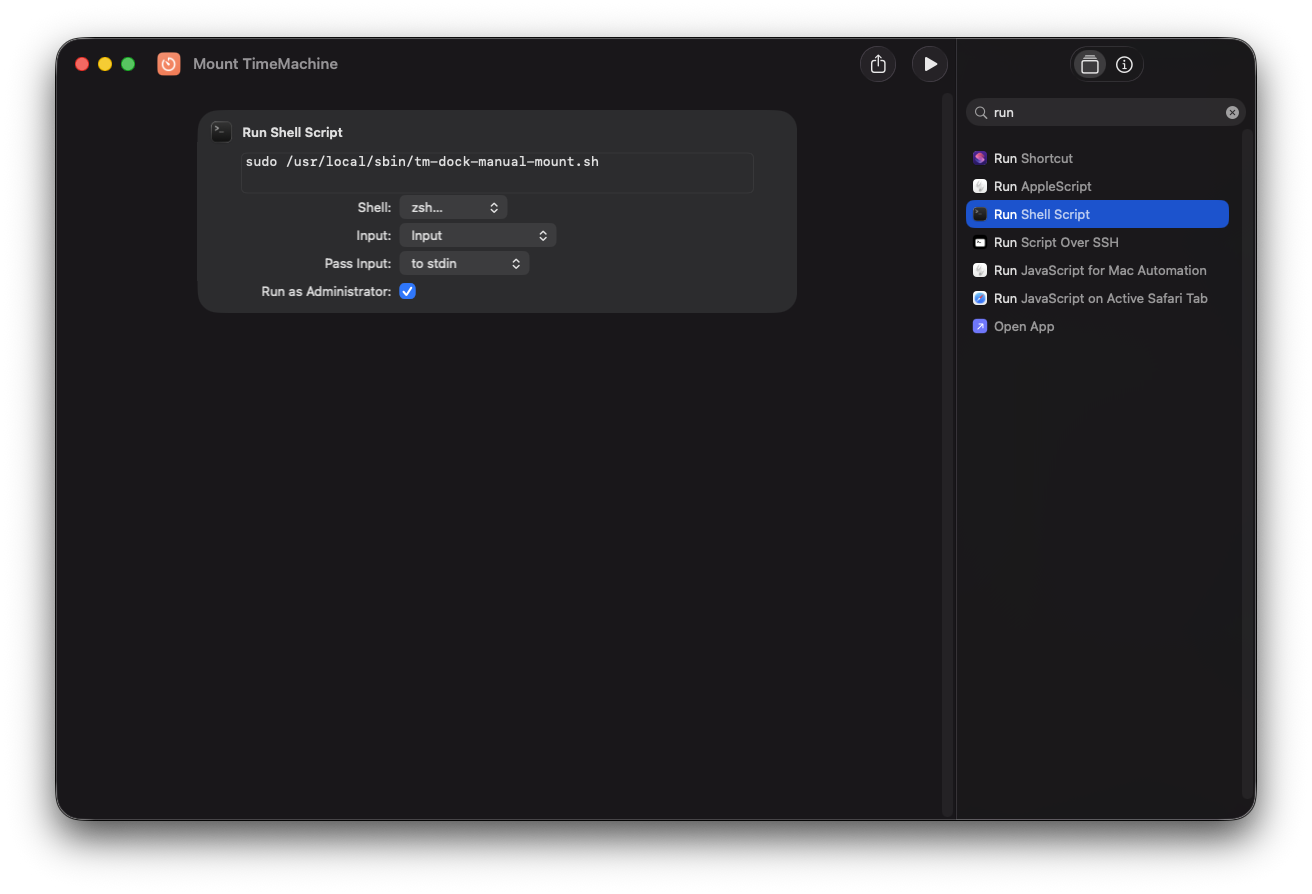
Then, you can access the Shortcut however you please. I personally like having it in the Shortcuts icon in my menu bar, but you can always run it directly from the Shortcuts app, via Siri, via a dock icon, or even a custom keyboard shortcut.
Updating the scheduled times
If you ever want to change your backup schedule, then you essentially only need to repeat Steps 3, 8, 9, and 10. That is, you just need to:
- update the times listed in
/usr/local/etc/tm-dock/times.conf(edit withsudo nano) - and in TimeMachineEditor to whatever new times you want, then
- run the
/usr/local/sbin/tm-dock-generate-plists.shscript (run withsudo) to generate the updated LaunchDaemon files, - and finally reload them with:
sudo launchctl bootout system /Library/LaunchDaemons/com.tmdock.mount.plist 2>/dev/null || true
sudo launchctl bootout system /Library/LaunchDaemons/com.tmdock.unmount.plist 2>/dev/null || true

sudo launchctl bootstrap system /Library/LaunchDaemons/com.tmdock.mount.plist
sudo launchctl bootstrap system /Library/LaunchDaemons/com.tmdock.unmount.plist
Serenity achieved
What began as a naive “surely it can’t be that hard to keep my HDD quiet except when minimally necessary?” question spiraled into a full-on macOS troubleshooting saga, but I am so pleased to have finally fully solved this issue, to have my noisy HDD spin-ups only occurring on a fully deterministic basis. While I admittedly think this really should be easier to solve for the average user rather than solely for power-users comfortable with not only terminal commands but with invoking sudo permissions too, I am glad it is at least solvable without needing to resort to any horrifically janky solutions. (At some point I was contemplating the viability of having some physical switch on my desk to toggle the HDD’s connection to the dock or to power…)
I will add that, as of writing this, I am no expert in macOS at all; I’m still very fresh to macOS but with a fair amount of professional experience operating on remote Linux systems. This was a huge learning experience for me, and I don’t necessarily regret being forced to learn all sorts of nitty-gritty details of pmset power management and states, launchctl LaunchDaemons, diskutil disk utility mounting with APFS-encrypted volumes, tmutil Time Machine utility, and other bits and pieces, as “learning through practical projects” is my preferred style, and maybe I’ll be able to apply this knowledge to future automation and scheduling tasks. That said, I really hope any future problems I want to solve on macOS will have much simpler solutions. 😅